New Student Technical Guide

Welcome to UNC Kenan-Flagler.  Please complete the following steps to ensure your device is properly configured for use at UNC Kenan-Flagler. If you need any assistance, please contact the IT Service Desk at itservicedesk@kenan-flagler.unc.edu, or by phone at 919-962-0792

Two Accounts

Kenan-Flagler account – KF username@business.unc.edu UNC Onyen account – Onyen username@ad.unc.edu Separate browser profiles Separate browser profiles should be made for each Microsoft 365 account you use, including Kenan-Flagler, UNC-Chapel Hill, personal, or your workplace.

Change Kenan-Flagler Account Passphrase

You should have received an email with your Kenan-Flagler username and a temporary password. You will need to change this temporary password before you can use it to access many of our services. To change your password:
  1. Go to https://myaccount.microsoft365.com
  2. At the Microsoft Sign in window, enter Your Kenan-Flagler Username @business.unc.edu
  3. Click Next
  4. Enter your Temporary password in the Password field, click Sign in 
  5. You will see a window that says More information required click Next
  6. Follow the instructions to set up Multifactor Authentication with the Microsoft Authenticator app and text message code.
    1. Note:  Sign up for 3 methods (like personal email) if traveling!
  7. Once you set up Multifactor Authentication, you will see an Update your password window. Enter your Temporary password (from your welcome email) in the Current Password field 
  8. Enter a password for your account. It has to be at least 17 characters.  You may use all lower-case letters to create a password, but you can also use capital letters, numbers or special characters if you wish.  
  9. Click Sign In
  10. You will be asked if you want to stay signed in, click no or yes 
  11. You will then be brought to your Kenan-Flagler Office 365 Landing page.

Log into Kenan-Flagler email

  1. Go to Kenan-Flagler Outlook Web Access
  2. Sign in with your Your Kenan-Flagler Username @business.unc.edu
  3. You should connect your email to Outlook, by following the instructions in the Configure Email in Outlook section below
NOTE: If you are using a Microsoft 365 account for personal or work use, we recommend logging out of the account in your browser and signing in with your Kenan-Flagler account when you need to switch between the two accounts.  When you are in the office portal, you can click on your initials or picture in the upper-right corner, click Sign in with a different account.  You will be brought to a screen that lets you sign into multiple accounts.  We recommend clicking on the three dots and signing out of the account that you are not currently using.

Log into MyKE

  1. Go to myke.kenan-flagler.unc.edu
  2. Sign in with your KFusername@business.unc.edu, KFBS passphrase, and multifactor option

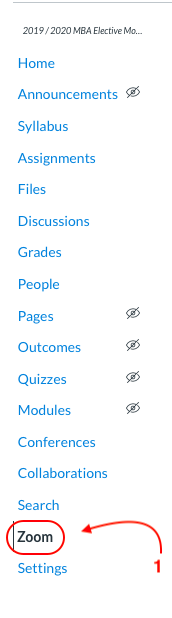
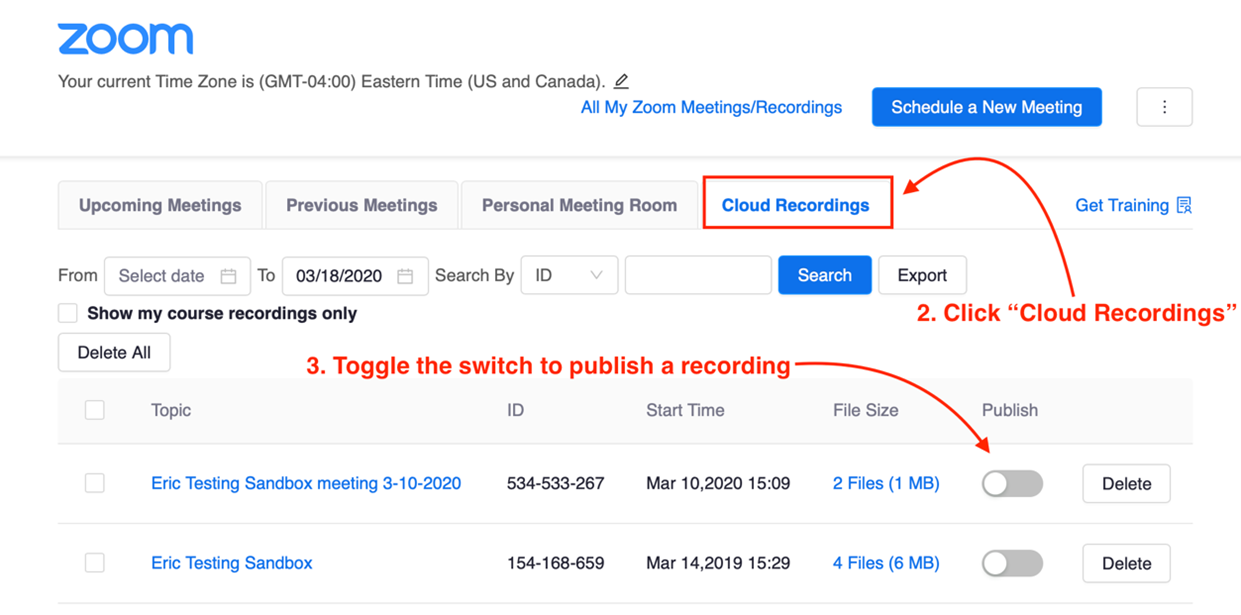
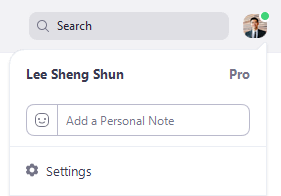
Create your Zoom account

  1. To sign up for a Kenan-Flagler Zoom account, please do the following:
  2. Go to kenan-flagler.zoom.us
  3. click the Sign in button.
  4. Click on the Confirm your email address button.
  5. Check your KFBS email for the invitation.
  6. You will be brought to the Kenan-Flagler login page
  7. log in with your Kenan-Flagler username @business.unc.edu and your password

Download and Install the Zoom App

  1. Once you are logged into your Kenan-Flagler Zoom account, you can download the Zoom desktop app
  2. Click on Resources in the top gray bar
  3. Click on Download the Zoom client
  4. Download and install Zoom client for meetings.  Run the installer
  5. Click the Sign in with SSO (key) button
    1. For Company Domain, enter kenan-flagler, click Continue
    2. You may be routed to the blue Kenan-Flagler sign in page, where you can sign in with Your Kenan-Flagler Username @business.unc.edu password

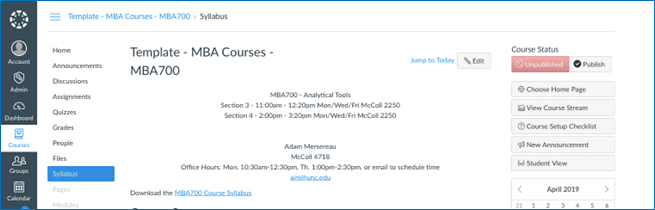
Log into Canvas

  1. Go to kenan-flagler.instructure.com
  2. Sign in with Your Kenan-Flagler Username @business.unc.edu
Canvas can also be accessed using an Android or iOS mobile device.  To download the app, see the guides here: Once you have opened the app click the “Find my school” button.  Search for “Kenan-Flagler Business School” (not UNC-Chapel Hill) and select it from the list that appears.  You will then be forwarded to the log in screen to continue.
Create your UNC Onyen
If you have not yet created your Onyen account.
Note:  Do not sign up for a UNC-Chapel Hill “Heelmail” email account unless you need access to main campus Office 365 resources.
  1. Visit https://onyen.unc.edu
  2. Select Create or Manage Onyen
  3. Follow the steps to create an Onyen account. You will need to know your PID. If you do not know your PID, please visit this website: http://www.pid.unc.edu/PIDLookup

Configure Mobile Devices

To configure Eduroam wireless internet on your mobile device, please choose the appropriate instructions this UNC help page. To configure your UNC Kenan-Flagler email on your mobile device, please choose the appropriate mobile setup instructions from the following Technical Guide. If you have any questions, please contact itservicedesk@kenan-flagler.unc.edu

Update Email Address in the UNC Directory and Connect Carolina

In order to order software from software.unc.edu and to receive general university email communications, you need to update your Connect Carolina email address:
  1. Visit https://connectcarolina.unc.edu
  2. Click on the Log in button
  3. Sign in with your Onyen username and password
  4. Select Personal Information > Contact Details
  5. Go to Business/UNC Email Address and Domain
    1. Enter Firstname_Lastname then select kenan-flagler.unc.edu from the drop-down menu
    2. Scroll to the bottom and click the Save button

Download Microsoft Office

You can obtain the full version of the Microsoft Office 365 Apps for Apple and Windows computer by going to https://microsoft365.com from your browser, and logging into Kenan-Flagler’s Microsoft 365 portal with your KF username @kenan-flagler.unc.edu.  On upper-left of the landing page, you will see an Install Office button.  You can install on up to 5 devices.
NOTE:  Office 365 is subscription-based and expires 180 days after you graduate, email the Service Desk for instructions on receiving a copy that follows you after you graduate.  You can download the Office Apps for Android and Apple iOS devices from their respective App Stores.  You will have to log into the apps with your KF username @kenan-flagler.unc.edu. UNC Student Stores (Carolina Computing Initiative) laptop purchases We recommend purchasing your student laptop at UNC’s Tech Shop, they include 3-year (4-year optional) warranties.  Lenovo laptops are preferred, which are more compatible with applications than Apple Macs: CCI Products – Carolina Computing Initiative (CCI)

Configure Email in Outlook

Windows Computers
The IT Service Desk recommends keeping your KFBS email separate from personal ones by using a separate Outlook profile.  Proceed by configuring a new Outlook profile in Windows.  If you’re opening Outlook for the first time, this happens automatically, otherwise :
  1. Restart your Windows PC
  2. Open Microsoft Outlook
  3. At the Welcome to Outlook window, click Next
  4. It will ask if you want to connect an email account.  Choose Yes.  Click Next
  5. Enter your name as you would like it to be displayed
  6. Enter your Kenan-Flagler email address: First_Last@kenan-Flagler.unc.edu
  7. Enter your Kenan-Flagler password twice
  8. Click Next
  9. You may see a window asking to “allow website to configure”. Check Don’t ask me about this again.
  10. Click Allow
  11. In the blue Kenan-Flagler window, enter your Kenan-Flagler username and password
  12. Click Log in
  13. You will then see a message that says, Your email account was successfully configured
  14. Click Finish
Apple Computers
  1. One Welcome to Outlook page, click Get started
  2. Note:  Apple prefers “KFusername@business.unc.edu” for email address.
  3. You will briefly see: ‘Redirecting you to your organization’s sign on page’
  4. Click Add Account
  5. On the Kenan-Flagler sign in page, enter your Kenan-Flagler username and password
Please contact us at ITServiceDesk@kenan-flagler.unc.edu if you have any difficulty.

Configure Wireless (Eduroam)

https://tdx.unc.edu/TDClient/33/Portal/KB/ArticleDet?ID=45
 

Install Printers

There are a number of printers available for student printing.  Please see the following Technical Guide for instructions on how to connect to these printers.

Email

If you are experiencing difficulty with the Outlook client, please use Outlook Web Mail at:  https://outlook.office.com/business.unc.eduIf you are having issues with your Outlook mail client, we recommend restarting your PC, if it hasn’t been restarted recently (two weeks at most), this especially applies to Kenan-Flagler Faculty & Staff PCs.  Also try logging in again & click OK and always trust certificates from Auto-discover if prompted.  If you are on a Windows PC, you may want to try and clear the cache from your browser.
Your email ID
As a member of the Business School you are provided with a UNC Kenan-Flagler email address. This email address remains active as long as you are an active employee/student and is deactivated upon departure or graduation. When you receive your account information, you will be provided with your email address and your email alias.Your email alias is in the form of FirstName_LastName@kenan-flagler.unc.edu.Ex: John Smith’s email alias would be John_Smith@kenan-flagler.unc.edu If you would like to request a name change to your alias (ie. John to Jack) you can do so by emailing your requested change to the IT Service Desk.Please click on an option below to see more information on how to configure it for your device, note that Outlook may take several minutes to sync and will be much longer on LTE or cellular connections instead of over WiFi.

INSTRUCTIONS


Microsoft Outlook for Windows Email Setup

  1. Restart your Windows PC
  2. Open Microsoft Outlook
  3. Click Add Account
  4. Enter your Kenan-Flagler email address: First_Last@kenan-Flagler.unc.edu
  5. Click Next
  6. Enter your Kenan-Flagler password
  7. Click Next
  8. You should see a message indicating your email account has been configured, Click Finish
If you see a message at the bottom of your Outlook window that says “connected to Microsoft Exchange, then your email should start loading. Please contact us at ITServiceDesk@kenan-flagler.unc.edu if you have any difficulty. 

Microsoft Outlook for Apple macOS

Note :  You must use your UserPrincipalName (KFUsername@business.unc.edu) to configure macOS Outlook in the Email Address field.  You will see your UPN frequently, it is used to sign into our Office 365 services and websites, but it has not replaced your email address, which is still First_Last@kenan-flagler.unc.edu.Outlook for macOS :
  • Click Get started on Welcome to Outlook page
    • If you have an account already configured, use File > Add Account
  • Email Address = KFusername@business.unc.edu
  • Password = Your Kenan-Flagler password
  • A window may appear that indicates the connection was redirected to outlook.office365.com, check the box to Allow.
Be patient while your account will begin to sync inside of Outlook for macOS. The initial syncing can take several minutes on WiFi and much longer over cellular.  Please let us know if you have any questions.

Mobile – Microsoft Outlook Android Setup

  1. Download the Microsoft Outlook Mobile App from the Google Play store
  2. Open Outlook for Android
  3. Click Get Started (or click on your initials > gear icon > Add account)
  4. Uncheck other email accounts (if they show and are checked) > click Skip (Bottom right)
  5. Enter your email address: First_Last@kenan-flagler.unc.edu > Click Continue
  6. On the login page displaying Your KF Username@business.unc.edu, enter your KFBS password.  Click Sign in
  7. After Tutorial, click on the Three Lines (top left), then the Gear (lower left)
  8. Turn off the ‘Focused Inbox’ feature if desired

Mobile – Microsoft Outlook iOS Setup

  1. Download Microsoft Outlook Mobile App from the App Store
  2. Open Outlook for iOS
  3. Click Get Started (or click on your initials > add account)
  4. Uncheck other email accounts (if they show and are checked) > click Skip (Bottom right)
  5. Enter your email address:  First_Last@kenan-flagler.unc.edu
  6. Click Continue
  7. You should see “Taking you to your organization’s sign on page”
  8. On the login screen with Your KF Username @business.unc.edu, enter your password.  Click Sign in
  9. After the Tutorial, Enable Notifications & Allow iOS Notifications
  10. After Tutorial, click on the Three Lines (top left), then the Gear (lower left)
  11. Turn off the ‘Focused Inbox’ feature if desired
Frequently Asked QuestionsOutlook no longer syncing or cannot send or receive emails?  We recommend removing and re-installing the mobile app from the Apple iOS or Android App Store on your cell phone, in some cases updates to the app itself can break the existing accounts.  In addition, restart your device every thirty days by completely powering it off and back on, which will often restore these connections.How do I configure Apple Mail or a different app for email?  Microsoft will soon limit the use of 3rd party applications that are not Microsoft Outlook.  KFBS IT only supports the official Microsoft Outlook apps for mobile devices, Apple macOS, or Microsoft Windows.

think-cell Chart Software

Create professional looking presentations for your classes fast using think-cell

Do you use PowerPoint to present in your classes? If so, think-cell – used by most consulting firms – might save you a significant amount of working time and enable you to create professional looking presentations for your coursework. Knowing think-cell could be a valuable skill as you enter the workplace since many employers, including top consulting firms and investment banks, use the software.think-cell is free to Kenan-Flagler Business School students, faculty, and staff. It takes just minutes to learn watching the short video tutorials available for each chart type. See below for helpful training resources and instructions on how to download think-cell.

How to learn more

For tailored think-cell support and self-service resources such as tutorial videos and a searchable user manual, visit https://www.think-cell.com/support

INSTRUCTIONS


How to Download and Install think-cell

Visit www.think-cell.com/download to download the software.

The think-cell license key is available on MyKE.

Conference/Study Room Cameras

Logitech MeetUp Cameras 

Some conference rooms and study rooms within the McColl Building are equipped with Logitech MeetUp cameras. These are all-in-one conference cameras with 120 degree field of view and integrated audio, perfect for small conference rooms and huddle rooms.Step into a huddle room and instantly start a video collaboration. MeetUp plugs into a USB port and simply works. Use any video conferencing software application and cloud service, including the ones you already use.