Zoom at Kenan-Flagler

Zoom is a video communications software that is used for video and audio conferencing, collaboration, chat, and webinars across mobile devices, desktops, telephones, and room systems. Zoom is available for all UNC Kenan-Flagler faculty, staff, and students; it offers the ability to host online meetings of up to 300 participants. This is the primary video conferencing tool for all Undergraduate, MBA, MAC, MSM, and PhD business school students.

Direct any questions you have about your business school Zoom accounts to the following contacts.

General Information

  1. Navigate to the UNC Kenan-Flagler Zoom Portal
  2. Click the Sign in button to go to the UNC Kenan-Flagler login page
  3. Sign in with your Business Account
  4. Once you see your Zoom dashboard, you have completed your account setup
You can find download links to the various Zoom installation files and plugins at the Zoom Download Center if you would like to get everything set up before your first meeting. This includes links for the desktop application and mobile applications. If you have not installed the Zoom application prior to joining a meeting, Zoom will prompt you to download and install.
You can login to your Zoom account through the Web Portal or the Desktop/Mobile app.

To login using the Web Portal, follow the directions below:
  1. Navigate to the UNC Kenan-Flagler Zoom Portal
  2. Click the Sign in button to go to the UNC Kenan-Flagler login page
  3. Sign in with your Business Account
To login to the Zoom App using Single Sign On follow the Zoom Support SSO directions (The Company Domain will be Kenan-Flagler.zoom.us)
Please follow the instructions at this link to install the Microsoft Outlook Plugin for Zoom

Zoom is phasing out the previous Outlook Plugin, and it’s recommended to instead install the Outlook add-in. The plugin no longer works for MacOS..

Student-Specific Information

The Zoom Student Presentation Instructions provide a walkthrough for sharing PowerPoint presentations in a Zoom meeting. You can find additional instructions for sharing content in Zoom on the Sharing your screen or desktop on Zoom Support Guide
All Kenan-Flagler students have access to a Licensed Zoom account. Refer to the instructions under Getting Started to claim your Zoom Account and get prepared to join a meeting.

  • You do not need to be logged in to join a meeting where you have the link.
  • The URLs for meetings will be posted in your individual Canvas courses. Please note that the instructor may use a different link for each course or course session.
Follow these best practices when attending a virtual class session at Kenan-Flagler:

Video and Audio
  • Refer to instructor for video ON/OFF preferences
  • Unless directed otherwise, mute audio to minimize distracting background noise
  • If you are unable to connect to audio via a computer, use the provided phone numbers to dial in via phone
Environment
  • Avoid distracting or inappropriate backgrounds
  • Avoid environments that may contain excessive background noise
  • Ensure the environment is well lit at you are visible on camera
  • Reposition yourself if you notice any shadows, glares, or visual distractions
Decorum
  • Try to arrive a few minutes early to the meeting to setup or troubleshoot any issues
  • Refer to instructors on preferences around asking questions or stepping away from your device
  • Familiarize yourself with meeting controls to be prepared for interactive or discussion activities
  • Use your discretion when posting comments or messages to the public chat group
  • Be aware of on-screen behaviors as some sessions may be recorded and posted

Faculty-Specific Information

Purpose
We have heard from students in both surveys and in focus groups that there needs to be greater consistency across all Canvas courses. They identified key components that would help them navigate to their course materials more efficiently and to ensure that they don’t miss anything. Below are the standards that the students and the Programs agreed on.

Home/Syllabus
  • Include course time/location and instructor office hours/contact info at top
  • Include link to full (static) syllabus.
    • State in the syllabus that this is a static document, and any class/ assignment adjustments will be reflected only on the Canvas site.
  • Individual class sessions and assignments will auto-populate in Course Summary below.
  • Set Syllabus page to be displayed as Home for the course.
Home/Syllabus

Files
  • Include folders for “Assignments”, “Class Sessions”, “Exams”, and “Miscellaneous”.
  • Within Assignments, have a separate folder for each graded element.
  • Within Class Sessions, have separate folders for each class session with titles starting with 01, 02, … 11, 12, … 24, … so that they are sequenced appropriately.
  • All materials for a given class session (slides, spreadsheets, electronic readings, etc.) should be stored in that folder for that class session.
  • .pdf files are preferable to .docx files.
  • Add additional folders as necessary (or delete folders if not applicable.
Example of the Main Files Page Main Files PageExample of the Individual Class Sessions Individual Class Sessions Files

Assignments
Canvas Guide for Creating Assignments Course Summary

Grades
  • After grading a student submission, enter score into Canvas.
  • Put a disclaimer about grades in Canvas and/or the syllabus letting students know that the grades in Canvas are not the official grade for the course (e.g., “Final course grades determined at discretion of professor (i.e., overall score of 90+ may not guarantee/be required for an H).
Grades

Calendar
  • Create an Event for each class session indicating the topic of that day’s class. Then within the event, put links to the appropriate files (pdf’s, spreadsheets etc.)
  • Include instructions for advance prep (readings, discussion questions, etc.) that students are expected to complete prior to class.
  • “Use different date for each section” if teaching multiple sections so it will appear correctly on the students’ calendar.
  • Be sure you are adding to the correct calendar if teaching multiple courses.
Calendar
Zoom is a video communications software that is used for video and audio conferencing, collaboration, chat, and webinars across mobile devices, desktops, telephones, and room systems. Zoom is available for all UNC Kenan-Flagler faculty, staff, and students; it offers the ability to host online meetings of up to 300 participants

To get started, Navigate to your Canvas course:
    1. Click Zoom on the Canvas Course Navigation

    2. Click Schedule a New Meeting inside of Canvas
    3. Select your meeting settings:
      • Topic: Title for the meeting
      • Description (optional): This allows you to set a description for the meeting
      • When: Date and starting time for the meeting
      • Duration: How long the meeting lasts
      • Time Zone: This should be set to EST since our courses take place in EST
      • Recurring Meeting: This will allow you to schedule multiple meetings at once
      • Registration: Registration should not be checked for course meetings in Canvas
      • Video: It’s our recommendation that video be set to OFF by default for both Host and Participant
      • Audio: This should be set to Both
      • Meeting Options: Mute participants on entry
      • Record the Meeting Automatically in the cloud should be used for all course meetings.
  1. Click Save; your meeting will now show up on under Upcoming Meetings
  2. The students will have access to this page by clicking the Zoom tab in their course and will see the same view. This is also where they will access the cloud recordings.
Consider hosting a low-stakes online test session or connecting with colleagues to test your login, troubleshoot technical issues, and get used to the Zoom interface. Send students to the Zoom test and provide them with instructions to make sure that they are ready to go before your first official session; this will give students a chance to notify you if they have issues when setting up Zoom.
  • Test and Familiarize yourself with the platform in advance.
  • Arrive early enough to work out technical difficulties.
  • Have a backup plan in case problems occur (Inform students of the backup plan ahead of time so they can remain on task if technical issues occur).
If you are receiving “Your connection is unstable” messages in Zoom or notice stutter/distortion in your video and audio feeds, you are most likely experiencing a bandwidth issue. Below are some suggestions to make sure you have a stable connection and help minimize bandwidth use by Zoom.

Make sure you have a stable connection:
  • If you are using wireless, make sure that you are close enough to the access point and have adequate network connection on your device.
  • Make sure there are no large files being downloaded on your device or any others that are connected to the same network you are utilizing Zoom on.
  • Minimize use of other services that may utilize bandwidth while on the meeting, such as streaming services and online multiplayer video games.
If the above suggestions didn’t help, follow these suggestions to minimize bandwidth usage in Zoom:
  • Disable HD video on Zoom, moving to Standard Definition video should reduce the amount of bandwidth required to transmit video
    1. In your desktop Zoom client, click Settings (the gear icon).
    2. Click Video in the left-hand menu.
    3. In the My Video section, uncheck the box beside Enable HD if it is checked.
  • If connection issues persist after disabling HD video, consider turning off video completely and only utilizing it when necessary. Ask participants to turn-off video unless required.
  • Consider calling into the conference audio by phone instead of joining via computer audio, this will reduce bandwidth requirements by moving all audio handling to your phone.
  • Only utilize Screen Sharing when necessary and consider turning off video while using it.
  • Consider recording asynchronous content and sending it out to students; you can complement this with Zoom drop in hours to allow students to ask questions without the bandwidth usage of a full class session.

Virtual Courses or Sessions at Kenan-Flagler

During a meeting, the host or co-host can quickly enable or disable certain settings from the meeting controls toolbar to secure the meeting and minimize disruption; this includes locking the meeting, enabling waiting room, and suspending participant activities. The host and co-hosts can also view the security features this meeting was scheduled with while in the meeting.
Follow the instructions below to use In-Meeting Host Tools during your meetings:
  1. Start a Zoom meeting
  2. Click Host Tools.

    In-Meeting Host Tools
  3. Use this menu to enable or disable meeting features and participant settings:

    Host Tools List

You can find detailed descriptions for these options on the Changing security settings in a Zoom meeting support article
By default, KF Zoom accounts are set to only allow host to share. Hosts can change this setting within a meeting or across all future scheduled meetings on their Zoom Account.

Changing Your Screen Sharing Settings in a meeting with the Host Tools Button in meeting
  1. Click the Host Tools Button
  2. Click Screen Share to turn on Participant Screen Sharing (this will close the pop-up box)

    In-Meeting Host Tools
  3. You can click the Host Tools button again to make sure Share Screen now has a check mark to the left; Screen share is now turned on.
Changing sharing settings in a meeting:
  1. Click the arrow next to Share Screen. Share screen
  2. Click Advanced Sharing Options.
  3. Click the radio button for All Participants.Advanced sharing options
Change share settings for your Zoom account:
  1. Sign in to the Zoom web portal.
  2. In the navigation panel, click Settings.
  3. Under In Meeting (Advanced), click the option for All Participants.Zoom account share settings


Find more information for participant share settings at Zoom Support via the Enabling screen sharing for participants in Zoom meetings support article
Remind students of student conduct information at the start of each class session and let them know you will exercise your responsibility as an instructor to mute those who are disruptive or otherwise inappropriately interrupt classroom operations. You may want to email the class the link to the Kenan-Flagler Honor code and the University Student Code of Conduct https://catalog.unc.edu/policies-procedures/honor-code/Consider adding a similar statement to your Canvas syllabus
Mute a Participant
  • Click the Manage Participants button in the Zoom toolbar at the bottom of the Zoom window.
  • Click the Mute button to the right of the participant name.
Lock Your Meeting
  • Once all your participants have joined the room, you can prevent others from entering it.
  • Click the Manage Participants button in the Zoom toolbar at the bottom of the Zoom window.
  • Click the More button in the lower right of the participant panel.
  • Select Lock Meeting.
  • Confirm the selection.
Remove a Participant from a Zoom Meeting or Webinar
  • Click the Manage Participants button in the Zoom toolbar at the bottom of the Zoom window.
  • Click the More button to the right of the participant.
  • Click Remove.
  • Confirm the selection.
  • After removing the participant, acknowledge the disruption, apologize to the class and continue with instruction with remaining participants.
Should a disruption occur, mute or quickly remove the attendee.If the participant is enrolled in the class, email the student following the session, clarify why the student was muted or removed, and remind them of appropriate conduct and expectations, and the disciplinary approach you will pursue.
To get started, Navigate to your Canvas course:
  1. Click Zoom on the Canvas Course Navigation
  2. Click Cloud Recordings inside of Canvas
  3. Toggle the publish switch to make a recording available to your students
As a licensed user, you have access to reports. Only meetings you’ve hosted as a licensed user (a paid user type) have reporting available.

Note: If a meeting was scheduled before you were licensed, but hosted after the license, then you will have reporting, but scheduling and hosting before the license will have no reporting available.
  1. Sign in to the Zoom web portal.
  2. In the navigation menu, click Reports.
  3. Click the Usage Reports tab.
  4. Click Usage.
  5. At the top, use the following functionalities to sort the data by meeting:
    • Search by time range: Select a time range (within a month) using the From and To fields, then click Search.
    • Search by meeting ID: Enter the meeting ID in the search box, then click Search.
  6. Locate your meeting, then click the participant count (number) under the Participants Source column.
    A list of internal and external meeting participants will appear. This will show you a list of meeting participants, including join and leave times.
  7. (Optional) Export the attendee list as a CSV file.
You can use the features of Zoom to guide different types of interactive activities and offer some variety in online sessions; this will keep sessions interesting and offer

Sharing Your Presentation in Zoom:

  1. Open your PowerPoint presentation on your computer
  2. Join the Zoom Session
  3. Click the Share Screen button located in your Zoom tool bar.
  4. Select your PowerPoint presentation in the prompt, and click the Share button to start sharing:
  5. Use the Slide Show button in PowerPoint to begin presenting

Screen annotation

Zoom has basic annotation tools (text box, free form draw/pen, shapes, and highlighter) that you can use to guide students or explain a concept. Access these tools by selecting the Annotate option when you’re sharing your screen.

Non-Verbal Feedback

To provide nonverbal feedback or reactions to the host of the meeting:
  1. Join a Zoom meeting as a participant.
  2. Click the Reactions button.
  3. Choose from the following icons or click • • • to choose from a full set of emojis. Click the icon again to remove it.

    • Clapping Hands
    • Thumbs Up
    • Heart
    • Tears of Joy
    • Open Mouth
    • Party Popper (Tada, Celebration)
    • Yes
    • No
    • Slow Down
    • Speed Up
    • I’m away*
    • Raise Hand / Lower Hand
The icon will appear in your video panel and next to your name in the participants list.

*Note: The coffee cup “I’m away” nonverbal feedback requires the desktop client for Windows, macOS, and Linux; version 5.7.3 or higher.

Learn more about participant controls in a meeting.

Setting the skin tone for your reactions
  1. In the Zoom client, click your profile picture and then click Settings.

  2. In the General tab, select your reaction skin tone.


Managing nonverbal feedback and meeting reactions (hosts) Nonverbal feedback and meeting reactions will be displayed in each participant’s video panel, as well as next to their name in the participants panel. Click the Participants button to see a full list of participants and their nonverbal feedback and meeting reactions.
In the participants list, you can view and manage feedback using these features:
  • If a participant clicked on a nonverbal feedback or meeting reaction icon, you’ll see that icon beside their name.
  • The number above each nonverbal feedback or meeting reaction icon shows how many participants have clicked on that icon.
  • If a participant clicked Raise Hand, you can lower their hand by hovering over their name and clicking Lower Hand.

  • To clear all nonverbal feedback at once, click Participants, then, then Clear All Feedback.
  • Emoji (meeting) reactions will disappear after 10 seconds, while raise hand and nonverbal feedback, such as Yes, No, Slow down, and Speed Up, will be persistent and must be manually removed by the participant or host.

Verbal Feedback

You can instruct students to use the “raise hand” feature to indicate questions or when they would like to add to a discussion; this allows students to remain muted until they would like to speak and prevents unnecessary background noise from interrupting the session.

Chat

Using the chat tool allows students to interact with the session, activity, and each other; it even offers some advantages over large classroom settings:
  • Get large numbers of responses to a question immediately, and use these responses in real-time to drive discussion.
  • Chat is especially useful to take in questions and answer them in order.
Think about how, when, and where you want to allow students to engage in chat.

Breakout rooms

You can use Zoom’s breakout rooms functionality to facilitate group discussion or have students work. As the instructor, you can join breakout rooms, broadcast messages to the breakout rooms, and end the breakout sessions when it is time to regroup. Keep in mind that breakout rooms will not be recorded.Notes:
  • Only the main session room will be recorded
Self-selecting a breakout room
Zoom breakout rooms allow you to split your Zoom meeting in up to 100 separate sessions. These can be split automatically, or manually, and allow participants to self-select breakout sessions. Pre-assigned breakout rooms are not recommended as they often do not catch all students and lead to instructors having to manually assign many students during the meeting.

More information and a video guide for Zoom Breakout rooms can be found on the Managing meeting breakout rooms support article
You can present slides to further explain a topic that was only touched upon in class or if several students ask the same question. Sessions can be recorded and shared for later viewing.
If you usually do “board work” as part of a class session, you have a number of options.
  • Use the Whiteboard feature (this often works best on a tablet computer rather than a trackpad).
  • Try the basic annotation tools (text box, free form draw/pen, shapes, and highlighter) to guide students or explain a concept.
  • Create a PowerPoint slide or other simple backdrop file on which you can type notes, and share those notes using Screen Sharing. Note that one advantage of this and other approaches here is that the boards can persist and be distributed to the students after class.
  • Prerecord the illustration as a video, then play it during class.

Reserve a Study Room

Make a Reservation

Study Room Reservations can be made by going to the following link:https://kenan-flagler.resourcescheduler.com/Reserving study room with Microsoft OutlookNote: Requires New Outlook
  • Open Calendar
  • Open New Event
  • Click Find a Room
  • Use the panel on the right to select building, date/time.
If you need assistance with making a reservation or receive an error, email Kenan-Flagler Facilities at:  facilities@kenan-flagler.unc.eduThere are 34 group study rooms on the first floor of McColl that can be reserved by UNC Kenan-Flagler students. These rooms have big screen monitors and whiteboards, so they are great for group work. The study room reservations are all managed by the individual programs while the hardware within the rooms is maintained by the IT Department.If you experience any issues with reservations or would like to submit a feedback on the reservation process, please contact your program.

Guidelines

  • Rooms can be reserved by all ALL UNC Kenan-Flagler students: Undergraduate Business, MAC, EMBA, MBA, and MSM.
  • Advanced booking – reserve rooms up to 14 days ahead of time
  • For groups only – not for individual study – there are individual study rooms in the sitting area outside of the Graduate Student Lounge
  • Reservations have priority, please leave courteously
  • Two hour time limit per group
  • Leave rooms clean

Use of the Monitor in the Room

  • You can connect to the Monitor with the available USBC cable.
  • If you have any issues with the study room technology, please contact itservicedesk@kenan-flagler.unc.edu.

Remote Desktop Connection

You must have VPN to access a computer from off campus.  ITS provides instruction for installing and configuring Cisco AnyConnect VPN software for use with UNC’s network available here: https://uncch.service-now.com/sp?id=kb_article_view&sys_kb_id=c8665ad2db1bfb886cf47104399619d4Please note that you will need your Onyen to view UNC’s VPN clients.To remote into a computer at UNC Kenan-Flagler the computer you are trying to access must be a Windows PC that is added to the Business domain, it must be powered on, it must be connected to the internet, and you must know the name of the computer you are trying to access.  Without meeting these requirements, you will not be able to connect to your office computer.

Apple iOS and MacOS

Cisco AnyConnect VPN software is available from UNC’s shareware site on OS X and MacOS, on mobile devices it is available directly through the App Store. In addition to the VPN, you will need the Microsoft Remote Desktop connection App available through the App Store.To connect remotely to a PC, open the Remote Desktop app, then you  create a connection by using the “+” sign in upper-right hand corner to Add New, select Desktop, enter “yourpcname.business.unc.edu” for PC Name, enter “business\BusinessUsername” for Add User Account, then  “BusinessPassword” for your Password.  Save the connection.

Windows PC

Open Remote Desktop and use your PC’s full name “example.business.unc.edu”.  It will ask for your credentials when you connect for the first time, use “business\BusinessUsername” for your Username, and your Business account password for your password.  In addition, you may need to use the Show Options button on the lower-left hand side and visit the Advanced tab to change the “If server authentication fails” dropdown from “Warn me” to “Connect and don’t warn me” if you are unable to connect.

Parking Gate App

You can use the OneCard GET Mobile App to access the parking gates and the doors that you are provisioned for.NOTE:  If you have an old OneCard that does not have an expiration date, you will have to go to the OneCard office to get a new OneCard.  Instructions for setting up the GET Mobile app can be found here:https://onecard.unc.edu/mobile-one-card/
 

Faculty Panopto Recordings

Faculty Self-Recording Instructions

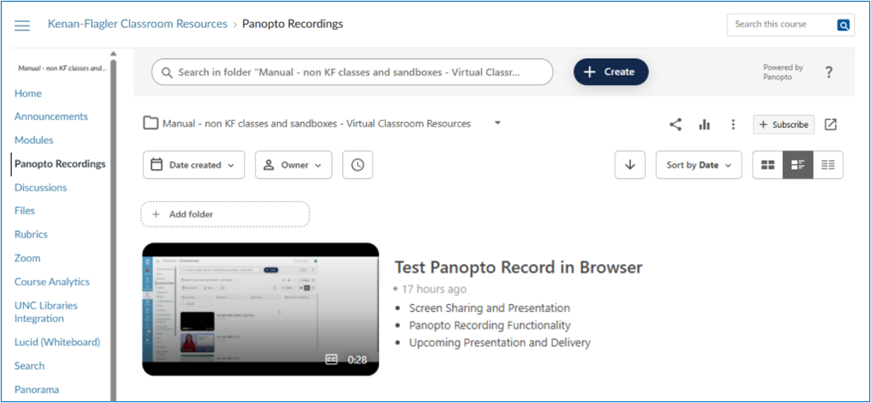
The following instructions will help instructors self-record a video in Panopto that will be stored in that course’s Panopto Recordings tab in Canvas.

Opening Panopto Capture in your Canvas Course
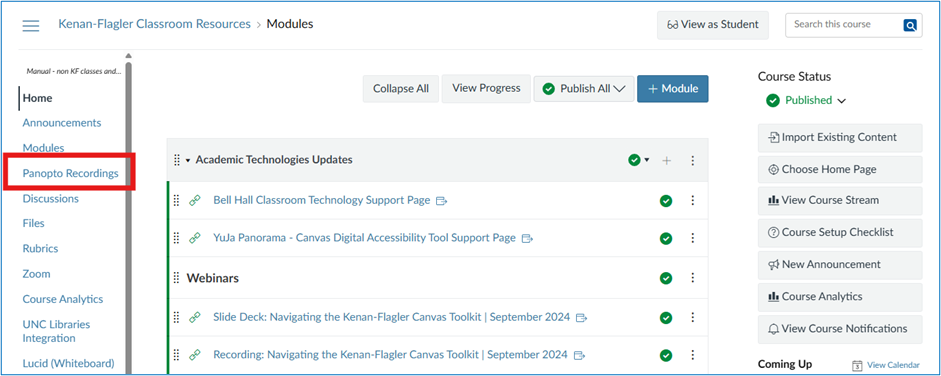
1. Navigate to the Canvas course page to which you would like to record. Select the Panopto Recordings tab in the left-hand navigation.
Panopto Faculty Self-Recording Instructions
Note: If the Panopto Recordings tab is not enabled in the left-hand navigation, follow these instructions on managing course navigation links.

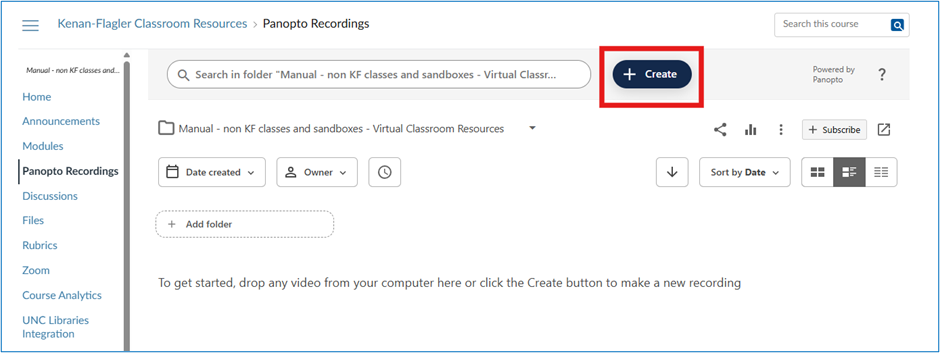
2. In the Panopto Recordings window within your Canvas course, select the +Create button.
Panopto Faculty Self-Recording Instructions

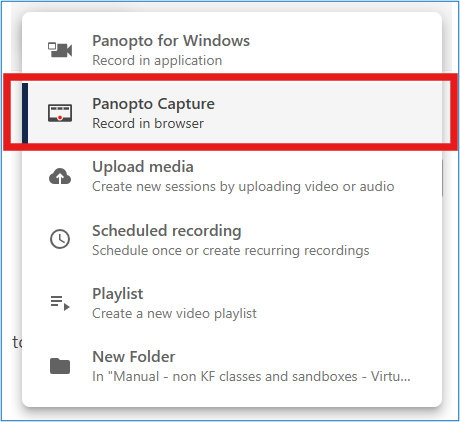
3. From the +Create menu, select Panopto Capture to record in your browser.
Panopto Faculty Self-Recording Instructions

Select Video Settings
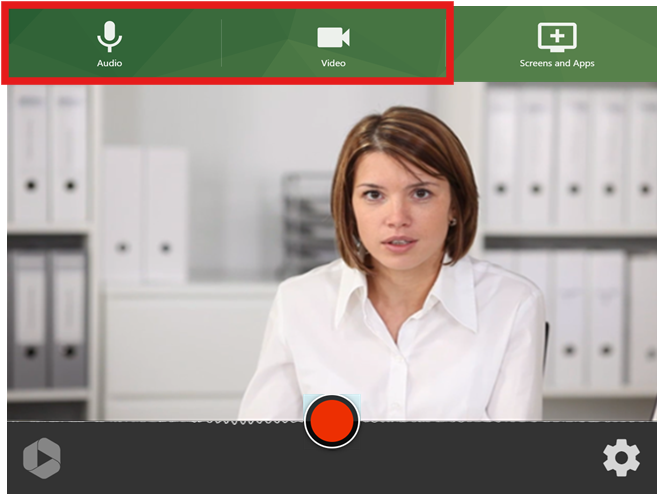
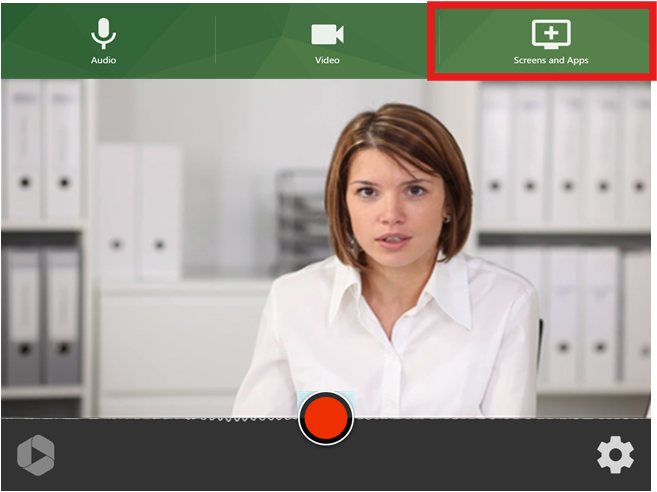
4. Panopto Capture launches in a new browser tab. You may be prompted by your browser to give Panopto access to your microphone and camera. You can select the desired microphone and camera from the top toolbar under Audio and Video.
Panopto Faculty Self-Recording Instructions

5. To record a screen, application window (like PowerPoint), or individual browser tab, select Screens and Apps from the top toolbar.
Panopto Faculty Self-Recording Instructions
Note: For more in-depth instructions for different browsers and devices, follow Panopto’s instructions for selecting screen and application sources.
Note: If you experience issues sharing your screen on a Mac, follow these troubleshooting steps.

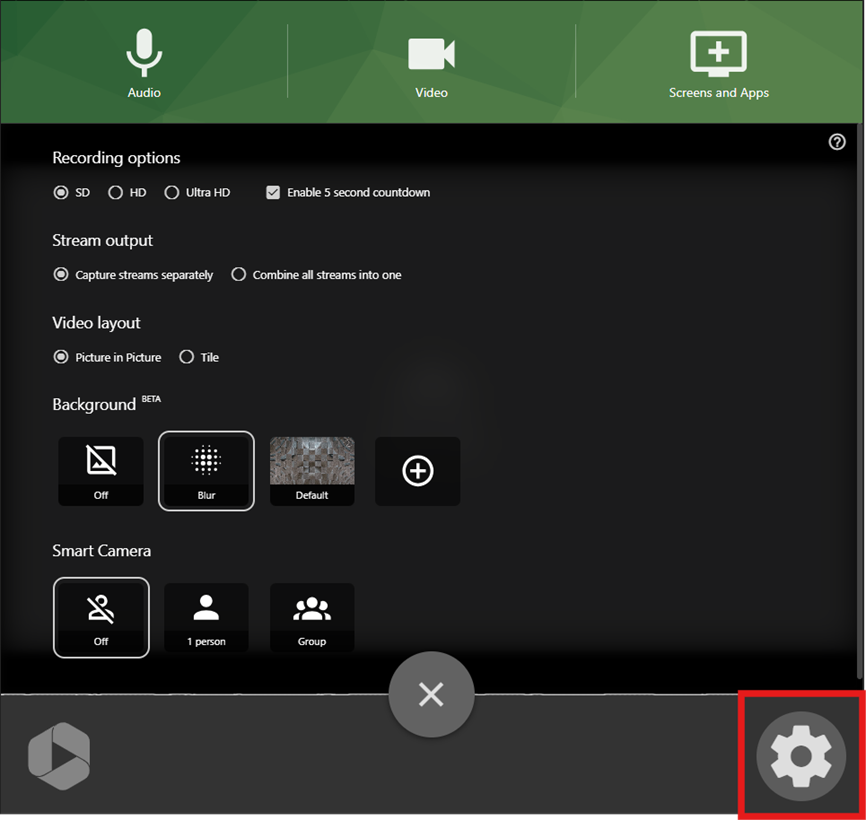
6. The Settings menu in the bottom right corner allows you to blur your background, turn the Smart Camera on or off, and enable a five-second countdown to start recording.
Panopto Faculty Self-Recording Instructions

Recording the Video
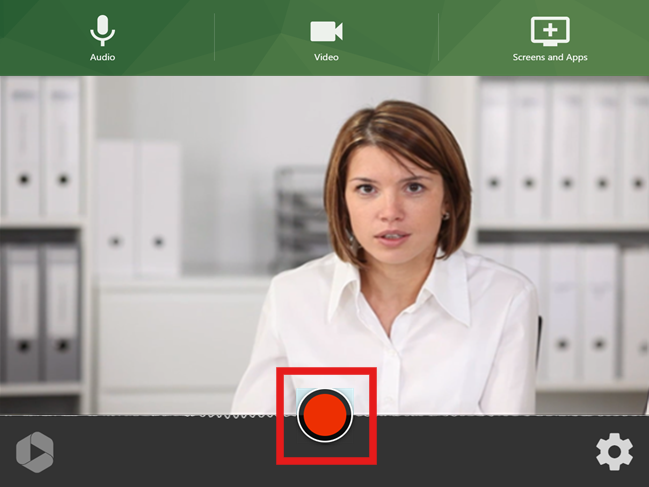
7. To begin recording your video, click the red circle button at the bottom center of Panopto Capture. To stop recording, select the red square button at the bottom center of Panopto Capture. The video will immediately begin to upload. Do not close the Panopto Capture browser tab until the upload is complete.
Panopto Faculty Self-Recording Instructions

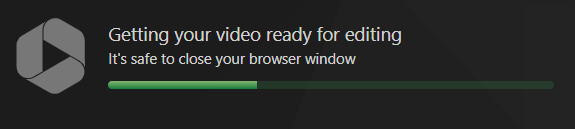
8. Once you stop the recording, a new page will load that shows the video’s progress. Do not close this page until you see the message Getting your video ready for editing: It’s safe to close your browser window in the top left corner.
Panopto Faculty Self-Recording Instructions

Previewing and Uploading the Video
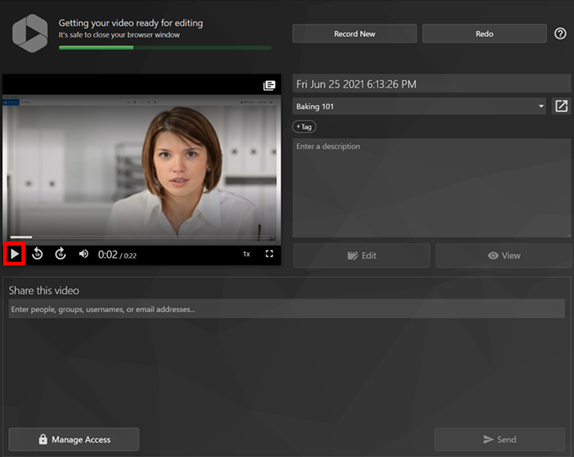
9. You can preview your video by selecting the play button on the page.
Panopto Faculty Self-Recording Instructions

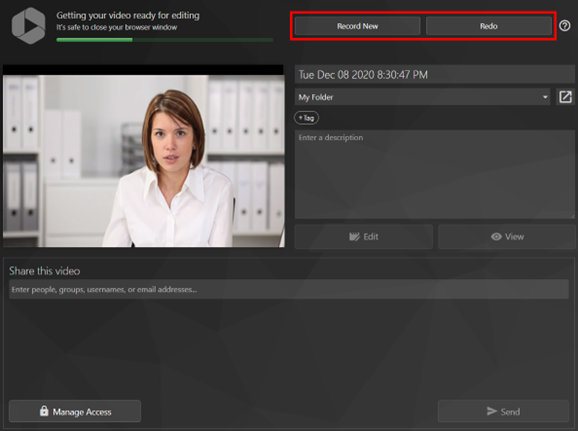
10. On the right side of the top toolbar, you can select Redo if you are not happy with the video you have produced and want to return to Panopto Capture to re-record or select Record New to film another video using Capture.
Panopto Faculty Self-Recording Instructions

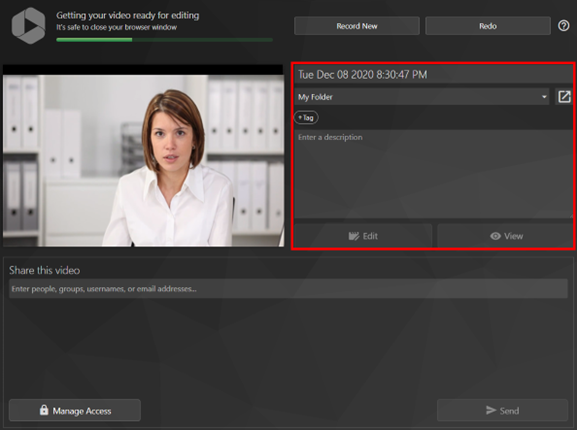
11. In the video details box, you can edit the video’s name, which automatically uses the date and time the video was recorded as a placeholder, enter the video’s description, and open the video in the Panopto editor by selecting Edit or view it in the Panopto viewer by selecting View.
Panopto Faculty Self-Recording Instructions
Note: Do not change the video’s folder location, as this defaults to the Canvas course folder you opened Panopto Capture in.

12. You do not need to Share this Video or Manage Access, as the viewer settings default to the students in the Canvas course you opened Panopto Capture in.

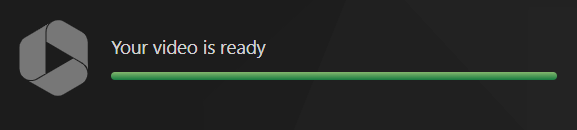
13. Once the video has been processed completely, it will state Your video is ready.
Panopto Faculty Self-Recording Instructions
Note: This video will upload to the Canvas course folder that you were in when you opened Panopto Capture.

14. Your video will now be available for students to view in the Panopto Recordings tab in your Canvas course.
Panopto Faculty Self-Recording Instructions

JMP Pro

Note:  Failure to update Connect Carolina with your KFBS email address will prevent successful order!  If the Software Distribution website seems stuck, the University may have no email address on file for you, as this procedure populates the UNC Directory with your KFBS email address.Update KFBS Email in Connect Carolina:https://connectcarolina.unc.edu
  • Login with your UNC-Chapel Hill Onyen to update your email to your KFBS email (Firstname@kenan-flagler.unc.edu) inside the Self-Service > Update Personal Information > Contact Info > Business Email/UNC Email Address and Domain.
    • Use the first field to add Firstname_Lastname, then the Dropdown menu to select ‘kenan-flagler.unc.edu’
JMP Download Instructions from UNC Software Distribution:https://software.unc.edu
  • Login with Onyen
  • Click ‘Shop as a Student’ on the left, type ‘JMP’ in the search bar and pick Mac or Windows version
  • Check your email for Order Confirmation and Order Fulfilled emails from UNC Software Distribution
  • If you do not receive the emails within an hour or two, check Spam/Junk folders and contact Software Distribution directly at (919) 962-2000 or email at software@unc.edu
Microsoft Windows installation:Note:  You must extract/unzip the file otherwise the install will fail.  Open the file from your browser’s recent downloads or File Explorer > Downloads.
  • Open the ZIP file, and use Extract All button at the top
  • Note the location of the extracted folder and keep the “Show extracted files when complete” checked
  • The unzipped folder should open, locate the ‘JMPPRO17x64.exe’ inside the following folder path: ‘/JMP_Pro/17_X/Windows’
  • Double-click the .EXE file to begin installation
  • Click ‘Next’ when prompted, ensure Excel add-in is selected
  • Be patient, can take several minutes to install
Apple macOS installation:
  • Double-click ZIP file inside Finder > Downloads, named ‘JMPPRO17X64’ or similar.
  • Go to the new folder inside the following folder path: ‘JMP > JMP_Pro > 17_X > Macintosh > JMP-Install.dmg’
  • JMP then mounts to your Mac, if not visible on Desktop open Finder > Devices on the left
  • Double-click ‘JMP Pro 17.PKG’ file and follow prompts
  • After opening you may be asked for SID license file, go back to JMP folder to locate text file under SID_Files
JMP License Renewal:https://license.unc.edu (Software Distribution License)
  • Sign in with Onyen and Onyen password
  • Select JMP and your version number depending on what you have installed
  • Refer to UNC’s FAQ on licence SID file installation:
UNC JMP License FAQ

Changing Password Instructions and Requirements

Changing your Kenan-Flagler Password

Your Kenan-Flagler Password expires once per year.  To reset your password, follow the instructions below.Faculty/Staff laptops while off-campusIf you are off-campus while updating your Kenan-Flagler passphrase on a Kenan-Flagler Windows laptop, connect to Cisco AnyConnect VPN, first, then once updated use Ctrl-Alt-Delete to Lock your machine, then sign back in using the new passphrase.Kenan-Flagler passphrase requirements
  • 17-characters minimum
  • Can use spaces
  • Can include numbers, special characters, and capital letters but are not required
  • Avoid using a variant of a passphrase you’ve used in the past
  • Once set is good for a year
To Reset your Expired Password
  • Go to: Change your password (Microsoft)
  • Enter kfusername@business.unc.edu
  • Enter the letters that you see in the picture, click Next
  • Enter your current password, click Next
    • You will be asked to provide 2 methods of authentication.  You can choose which 2 to use.
    • You will then be asked to enter your new password twice
    • Click Finish
  • You will see a note that says your password has been reset.
Forgotten KFBS Password:Microsoft Online Password Reset
  • On the “Get back into your account” screen:
    • Enter your KFusername@business.unc.edu for User ID and the Captcha, Click Next
  • Select “I forgot my password”
  • Verification Step 1 > Choose contact method for verification
  • Depending on your selection, you’ll receive an SMS text, a personal email, or use the Microsoft Authenticator app.
  • Once verified, enter new KFBS passphrase
If you have trouble resetting your password after following these steps, please email the IT Service Desk at itservicedesk@kenan-flagler.unc.edu

UNC Virtual Lab

Please note that UNC Virtual Lab now requires you to sign in with UNC Office 365 authentication.  If you are not registered for 2-Factor authentication, you can register here.  You will be asked to log in with your UNC (onyen@ad.unc.edu) account:Help Articles – Citrix Login – Virtual Lab and UNCApps (service-now.com)

Running Virtual Lab

  • Open a Firefox or Chrome Internet browser
  • Go to virtuallab.unc.edu
  • Log in with your UNC Onyen and password
  • You will be asked to choose an authentication method.
  • Once you have approved your authentication, you will see a security message. Click Accept
  • It will show you a Citrix Receiver screen.  Click on the Detect Receiver button
  • Check the box that says “I agree with the Citrix license agreement”
  • Click on Download, then click Save File
  • Citrix Workspace app will how in the downloaded files.  In the upper-right corner (Firefox) or at the bottom of the screen (Chrome)
  • Follow the instructions below to install the Citrix Workspace app.

Installing Citrix Workspace

  • In the Welcome to Citrix Workspace screen, click on the Start button
  • Check the box to accept the license agreement, click next
  • Click Install (do not enable single sign-on)
  • Once you see the installation is successful, click Finish (not add account)
  • Search for Citrix Workspace on your computer, and run the app
  • Click add account
  • It will ask for a username.  Enter virtuallab.unc.edu
  • It will then ask for a username and password.  Enter your UNC Onyen and password
  • There is a second password box.  This is for 2-factor authentication.  You can enter “push” to send a push to your Duo app on your phone, or you can open your Duo Mobile app, and enter the current six digit code (with no spaces) in the second password box.
  • You should then be able to access the Virtual Lab virtual desktop, and run applications
 

Arena

Arena simulation uses Microsoft’s Virtual Desktop in UNC’s Microsoft 365 environment, which will require you to sign in using your UNC-Chapel Hill username of onyen@AD.UNC.EDU, Onyen passphrase, and register for two-factor if you have not, already.  Refer to the following instructions:

Note:  Create a separate browser profile for accessing UNC’s account before proceeding:Create browser profile: UNC-CH Multifactor Registration:  Help Articles – 2-Step for Office 365 – MFA (unc.edu)Errors while connecting:  Article – Virtual Lab: Error – Admini…Access Microsoft Virtual Desktophttps://rdweb.wvd.microsoft.com/arm/webclient/index.html
  • Under ITSD-AVD click “Desktop – CLICK HERE TO FIND APPS” to begin session
  • Under Access Local Resources, select Clipboard and printer, then Allow and select Don’ task me again for connections to this computer
  • Under the Enter your credentiials screen, sign in with your onyen@AD.UNC.EDU and Onyen passphrase
Before opening Arena:  Set up your Kenan-Flagler OneDrive
  • Open Search bar at the bottom, type “OneDrive”, click OneDrive (App) under Best Match
    • It should say Connecting and Launching OneDrive
  • OneDrive email address field:
    • Enter kfusername@business.unc.edu, KFBS passphrase, and second factor *This connects the OneDrive on the Virtual Desktop to your UNC KF account
Open Arena
  • Click on the Arena icon to open the application
Save a Test File to your OneDrive
  • To save a file, click on File > Save As
  • Select OneDrive – UNC Kenan-Flagler Business School
  • When you need to go back to Arena, you can re-open the file from OneDrive
Opening a previously saved file
  • When you log back into Arena in a future session, you may see a “recent documents” list. That will not work
  • Click Open > Browse then and browse to your Kenan-Flagler OneDrive in This PC
  • Open the file

Antivirus Software Instructions

Windows 10 & 11

Windows Defender comes with computers that run Windows 10.  Windows Defender will scan your computer and keep its virus definitions up to date.You can find more information about Windows Defender here.
If you have a Kenan-Flagler computer, it should already have the software installed.  Please contact the IT Service Desk if you have any questions.

FREQUENTLY ASKED QUESTIONS


What best practices should I follow regarding viruses/spyware?

  • Avoid unknown sources for file downloads (Torrent, etc..)
  • Avoid opening suspicious email attachments from unfamiliar senders
  • Set virus definition updates to occur automatically. At least once per week.
  • Run a virus scan at least once a month.
  • Run a virus scan if you notice strange computer behavior.

Antivirus Software

The IT Service Desk recommends antivirus software as well as an antispyware solution to combat today’s viruses/malware.  Both Windows and Macs can get infections. Depending on what product you’re using for virus/spyware removal we recommend that you run monthly security scans with products like System Endpoint Protection Center, Windows Defender, or Avast antivirus. Often these scans can slow down your PC and occasionally take lengthy amounts of time to complete, however they can remove unwanted viruses and spyware which can cause pop-ups and security threats.

Typically, these products will allow you to run a scan and then prompt for the removal of infections. In addition, if they remove something which was necessary for your PC there are often a quarantine area where you can restore files from.
  • Faculty and staff have computers that are managed by the IT Department, the updates and scanning are done automatically.  We do not encourage sensitive users or users with sensitive data (such as social security numbers, passport photos, etc.) to remove viruses themselves.  If you’re experiencing a virus/spyware infection please contact the IT Service Desk immediately, do not attempt virus removals yourself.
  • Students must install their own software if it did not come installed when the computers was purchased.  If you have any older antivirus software you must uninstall it prior to installing a new A/V product. If a virus or spyware is found on your computer, you can remove it yourself by following the instructions on the vendor’s website. You can also contact the IT Service Desk for assistance.
If you have questions regarding virus/spyware removal please contact the IT Service Desk at (919)962-0792 or itservicedesk@kenan-flagler.unc.edu and we will be happy to assist you.