Having trouble using UNC’s Virtual Lab, Citrix Workspace, or browser errors?
Refer to the below documentation for the most common solutions. Consider using an Incognito/Private browser window to bypass extensions, as they can often cause issues while using Virtual Lab.
Common issues with accessing Virtual Lab include using the correct UNC-Chapel Hill account (onyen@ad.unc.edu), registration of UNC-CH two-factor, avoiding workplace machines (too restrictive), and checking your version of macOS for the appropriate Citrix Workspace app, see below.
Note: “Selected user account does not exist” error while signing in? Use onyen@ad.unc.edu to sign in!
- Use Incognito window to bypass history/cache/cookies and extensions.
- Sign out of kfusername@business.unc.edu, close and re-open browser, sign back in with onyen@ad.unc.edu.
- Use a new browser profile, or alternate browser.
- Multi-factor is required for use with UNC’s Virtual Lab, using your onyen@ad.unc.edu account, see below.
UNC-CH Microsoft Authenticator two-factor registration:
Article – 2-Step for Office 365: MFA
Apple macOS: Using macOS and Citrix not opening/working? You may be on an older version of Citrix Workspace.
Download Earlier Versions of Workspace app for Mac – Citrix
- Determine your Apple macOS you’re on inside Apple Menu > About my Mac.
- Note the OS version and the processor type.
- Based on your version (10.15, Catalina and newer)
- Ensure you select Apple Silicon.
- Older macs select Intel-based.
Connect to UNC Virtual Labs (with browser):
https://virtuallab.unc.edu
- Use Detect Receiver button
- Follow prompts for Detect Receiver, download and begin installation
- During installation, leave Enable Single Sign On and Enable App Protection boxes unchecked, restart.
- Check all “always Open with” prompts or boxes to open links with Citrix Workspace app/
Connect using Citrix Workspace App:
- In Add Account use “virtuallab.unc.edu”
- Sign in with onyen@ad.unc.edu.
- Register for UNC’s multifactor if you have not already.
- Click Apps.
Saving Files on macOS:
- Open Citrix Workspace.
- File Menu (top) > Preferences > File Access > Set to “Read and Write”.
- Close and re-open the app, open Crystal Ball (in Excel) then use File > Save As > Browse and locate users folder in C: Drive, use “Desktop”, watch for prompts and allow access.
Contact UNC-Chapel Hill ITS for additional support:
https://help.unc.edu (Chat bubble, use “Live Agent”, include screenshots of your errors.
or
(919) 962-4357
Current students and alumni, both, please refer to the following website where you’d submit this request via the UNC Chapel Hill Registrar’s Office:
Order a Transcript:Order a Transcript – Office of the University Registrar (unc.edu)In the event you have any issues, please contact the Registrar’s Office directly:
transcript@unc.edu
Kenan-Flagler IT recommends students avoid workplace machines for creating their accounts and their schoolwork, both. Please consider the following regarding workplace machines:Workplace machines issues:
- Personal (non-managed) devices prevent access issues.
- Workplace Office 365 accounts can interfere with student account creation and activation including instructions inside “Action Required” emails.
- Workplace devices have IT controls, firewalls, or other restrictions which may prevent successful use of our sites/services.
- Cisco AnyConnect VPN will not function on most workplace devices.
- You may be unable to configure your Kenan-Flagler email account inside Outlook.
- Technicians will not provide remote support on workplace devices.
Please contact the Service Desk if you have any questions.
itservicedesk@kenan-flagler.unc.eduSetting up fingerprint sign-in
Click on Windows Search and type in “fingerprint.” You will see an option to “Set up Fingerprint sign-in.”

Click on that and choose the “Windows Hello Fingerprint – Sign in with your fingerprint scanner (Recommended)” option, then you will see instructions on how to set up your fingerprint.

Fingerprint readers on laptops are generally in one of two places: either a small square to the right of the trackpad or for newer models, the fingerprint reader is the power button. You will be asked to repeatedly lift and re-place your finger.Once you finish setting up the fingerprint sign-in method, you will be prompted to set up a PIN automatically as a backup sign-in method. This will be a number of your choice with a minimum of six digits. The PIN setup will prompt you to accept a Microsoft Multi-factor Authentication prompt during the process.After the fingerprint and PIN sign-in methods are set up, please restart your computer to complete the next step.Before those newly enrolled sign-in methods fully work, your computer must connect to the campus network to synchronize the settings. To complete that process, follow one of these options:
- If you are onsite, ensure your laptop is docked, then log into the machine by placing your finger on your fingerprint reader on the login screen.
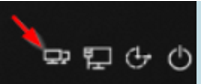
- If you are off-site, connect to the UNC VPN before attempting to log into your machine by clicking on the Network Sign-in icon in the bottom right corner of the screen:

- Once connected to the VPN, log into the machine by placing your finger on your fingerprint reader.
- Once you have successfully logged in using your fingerprint, you are all set and have completed the setup process. If you are offsite, while we recommend using the UNC VPN before logging in on a normal basis, it is not required to use the fingerprint or PIN sign-in options after the initial login.
If Fingerprint sign-in is not available

If you see the message above, you have the following options:If you are
onsite, connect your laptop to a docking station, restart your computer, and log back in.
- Use the computer normally for 30 minutes
- After 30 minutes, you can click on Windows Search and type in “fingerprint.” You will see an option to “Set up Fingerprint sign-in.”.
- Follow the process of setting up fingerprint sign-in from above.
- If you still see that the set-up option is unavailable, please contact the IT Service Desk.
If you are
off-site, connect to the UNC VPN and let the computer remain connected for 30 minutes. Then restart your computer.
- After restarting, you need to connect to the VPN before logging in. To do so, click on the Network Sign-in icon in the bottom right corner of the screen. This will allow you to log into the VPN before you log into the computer.
- Click on Windows Search and type in “fingerprint.” You will see an option to “Set up Fingerprint sign-in.”
- Follow the process of setting up fingerprint sign-in from above.
- If you still see that the set-up option is unavailable, please contact the IT Service Desk.
The Adobe Creative Cloud suite is required to install the Adobe Acrobat PDF editing program, but includes many other products like InDesign, Photoshop, and more. Adobe’s Creative Cloud suite is available to our students via submitting a request to UNC Software Distribution using the Student Order button on UNC’s Adobe CC website, which also includes links for installation instructions for Windows, macOS, and mobile devices.
Note: By installing the Adobe Creative Cloud applications, you agree that you will not store any sensitive data in the Adobe cloud-based storage, per UNC ITS:
Service – Adobe Creative Cloud
Students:
Ordering Adobe Creative Cloud from UNC:
Adobe Creative Cloud – Software Distribution –- Login with UNC-CH Onyen username
- Click ‘Shop as a Student’ on the left, type ‘Adobe Creative Cloud’ in the search bar and use Add to Cart.
- Check your email for Order Confirmation and Order Fulfilled emails from UNC Software Acquisition
- If confirmation hasn’t arrived on your KFBS email account, you may have a UNC-Chapel Hill Heelmail email address, visit https://heelmail.unc.edu and sign in with onyen@ad.unc.edu to check.
- If this is the case, consider setting Connect Carolina’s Business Email address to your Kenan-Flagler, email us for instructions.
Faculty:
Submit a request to main campus ITS Software Distribution using your UNC-Chapel Hill Onyen username/password. Keep in mind the email that arrives may be on your UNC Heelmail account unless your Kenan-Flagler account is set inside as your primary inside Connect Carolina.
Adobe Creative Cloud – Software Distribution –
Staff:
Submit a request to Kenan-Flagler IT Purchasing using your departmental cost code via their form:
IT Purchasing | UNC Kenan-Flagler
Installation instructions:
https://software.sites.unc.edu/adobe/- Refer to UNC’s “Installation Instructions” section on UNC’s Adobe website for Windows, macOS, or mobile device instruction sets.
For technical issues or questions, please contact Academic Technologies
Email: itacademictechnologies@kenan-flagler.unc.edu
Phone: 919-730-9108
Preparing the Console PC
*Console PC must be used to ensure that classroom audio/video is properly recorded and transmitted to Zoom Participants*Crestron Panel and Projectors
- Activate the Crestron panel if not turned on. The password is FUND
- Turn on both the front projector and the new Zoom projector
- If you have no image on the front projector, make sure you press the “send to projector” button on the touch Panel
Classroom Computer
- Make sure the PC source is selected on the touch panel
- Log into the console PC using your KFBS credentials (This is your KFBS Username and Password)
- Access your desired Kenan-Flagler resource through the browser and login with your KFBS Username (username@business.unc.edu)
- Canvas (https://kenan-flagler.instructure.com)
- Office365 (https://www.office.com)
- MyKE (https://myke.kenan-flagler.unc.edu/)
*Authenticating with any of these sites should authenticate you for all of them*Zoom
Sign in to Zoom Client
- Open Zoom on the classroom computer
- At the Zoom Login screen, click the Sign in with SSO option
- Type kenan-flagler as the company domain and click continue. This will redirect you to the Kenan-Flagler login page where you can login with your Kenan-Flagler username and password.
Display 49 Participants
- Go to Settings in the Zoom client
- Go Click the Video option in settings
- Check the box beside Display up to 49 participants per screen in Gallery View
Start Zoom Meeting
- Open your scheduled Zoom meeting and when you get the pop up, connect using the computer audio
- Run the audio “test speakers and microphone” and adjust if necessary
- to make sure everything sounds correct in the classroom speakers.
- Select “Crestron” for test speaker
- Select “digital audio interface (inogeni)” to test mic
- If the classroom camera does not show, go to the Zoom camera options and select that camera.
- When share screen is started in Zoom, the remote participant window will automatically move to the rear screen (Please see ‘Setting up PowerPoint for HyFlex below). If you have a guest speaker you will have to manually drag the remote participant to the main/front projector.
Annotating from another device via Zoom
- Connect your desired annotation device to the Zoom meeting via a meeting URL (Don’t login to Zoom since this may disconnect the console PC)
- Use the console PC to make your connected Device a Co-Host
- Share the screen from the connected device and run the meeting from there
Setting up PowerPoint for HyFlex
* These adjustments must be made before teaching in a HyFlex setting* - Within PowerPoint, click the [Slide Show] tab.
- Click the Monitor drop down menu towards the right of the ribbon tab
- Change the selection from “Automatic” to “Primary Monitor”
- Unselect “Use Presenter View”